


Fix a phone snapshot before you post it. Only the real flaws.

Phone photo fix is a DFIRST skill that turns a phone snapshot into a clean photo ready to post. Firsty, the DFIRST agent, finds what is really wrong, such as dim light, a colour cast, noise, spots or low resolution, fixes only that and checks the scene is unchanged. You get Before and After side by side, plus crops for your channels.

  • Only real flaws are fixed, and a good photo is left alone
  • Nothing is added, removed or moved in your photo
  • Your original stays untouched next to the fix
Phone photo fixYour draft stays on this device

02Your photo optional

Try an example
Start with Firsty

Join the waitlist to finish. Your draft stays on this device, and Firsty starts on it as soon as your access starts.

Examples. What you ask, what you get back.

Our stockist café in Gràcia sent this breakfast shot for a joint post. It's dark and a bit muddy. Can you fix it?

The diagnosis found four flaws: too little light, a yellow cast, grain and slight softness. Only those were fixed. The croissant, the cup, the heart in the foam and the window are where they were.


A dim, yellowish phone photo of a croissant and a latte on a café table by a window
Before
The same croissant and latte, brighter, with natural colours and clean shadows
After
DocumentDiagnosis
Light
Done Underexposed: brightened, most on the cup and the croissant
Colour
Done Yellow-green cast and faded contrast: corrected
Noise
Done Grain in the dark corners: reduced
Sharpness
Done Slightly soft: sharpened lightly
Left as it was
Ok Framing, angle and every object
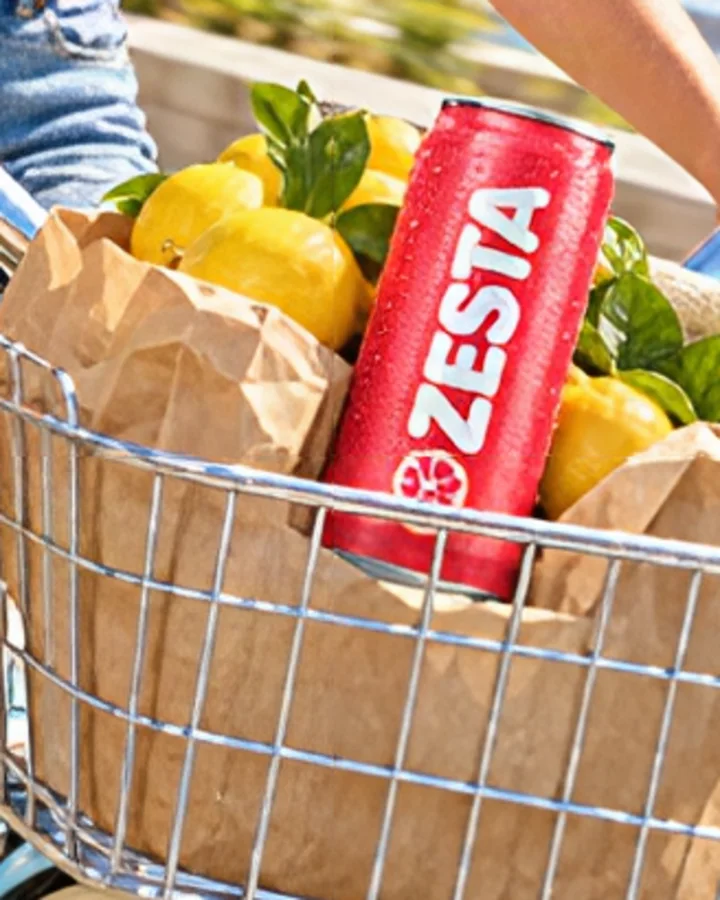
I cropped the basket out of a wide shot from the promenade shoot and now it's tiny and blurry. Can you save it for a 4:5 post?

Size was the real flaw: the crop was too small and blurred by enlarging. The fixed photo is full size, with the lemons, the leaves and the ZESTA lettering crisp, and the can, bag and basket exactly where they were.

A blurry close crop of a bike basket with lemons and a ZESTA Grapefruit can
Before
The same basket crop, sharp, with readable ZESTA lettering and clear leaves
After

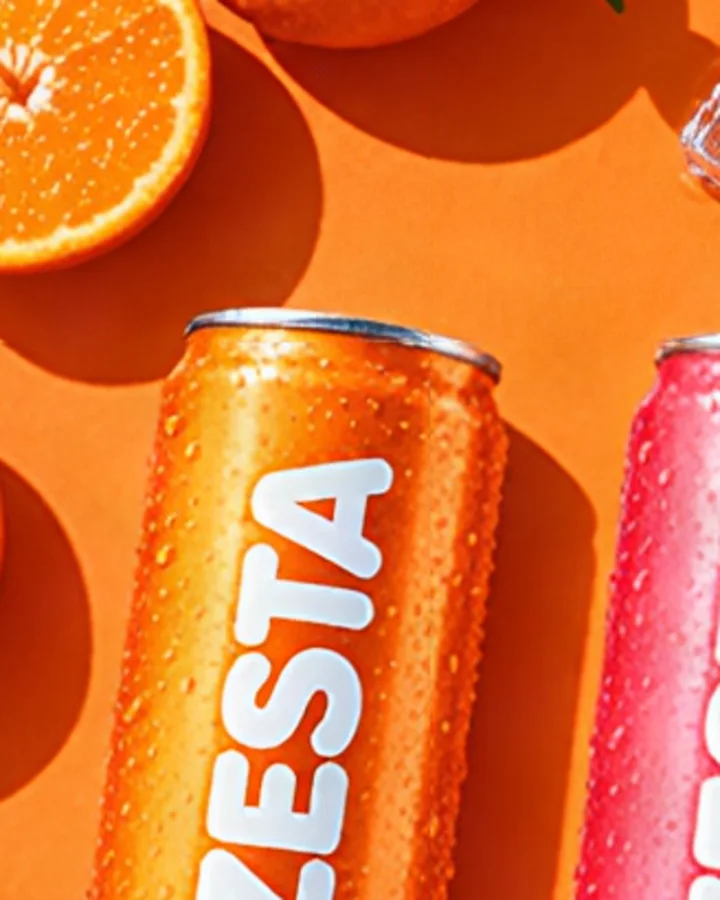
The client's flat lay of their Tangerine and Grapefruit cans came out soft. Sharpen it for the shop page, but don't touch the colours.

Softness was the one flaw found, so sharpness was the one fix. The orange background, the shadows and both cans kept their colours and their places, as asked, and the crops came in 1:1 and 4:5.

A soft, out-of-focus flat lay of an orange and a pink ZESTA can with half an orange
Before
The same flat lay, sharp, with droplets on the cans and crisp lettering
After

How it goes. The same steps every time.

Firsty follows the skill’s steps in order and stops where the choice is yours. Nothing paid starts without your yes.

  1. 1

    Firsty finds what is really wrong: light, colour, noise, spots or size

  2. 2

    Firsty fixes only those flaws, with the lightest touch that works

  3. 3

    Firsty checks the fixed photo still shows exactly the same scene

  4. 4

    Firsty puts Before and After side by side and makes your crops

Done when

  • Only real flaws are fixed, and a good photo is left alone
  • Nothing is added, removed or moved in your photo
  • Your original stays untouched next to the fix
  • Every crop keeps your subject whole

At a glance.

What Phone photo fix needs from you and what it hands back.

You bring
One photo, as it came off your phone. No settings to choose.
You get
The fixed photo beside your original as Before and After, a short diagnosis of what was wrong, and crops for your channels.
What it fixes
Light, colour, noise, spots and size, and only the flaws your photo really has.
What stays
Everything in the picture. Nothing is added, removed or moved, and your original is kept untouched.
Crops
1:1 and 4:5, unless you name your channels, with your subject kept whole in each.
Where it goes
Cards on the board of your session, the original and the fix side by side.

Part of this skill. Each task also has its own page.

When you ask for one of these on its own, Firsty runs it with this skill.

Questions people ask.

About Phone photo fix and how it fits the rest of DFIRST.

How do I fix a dark or blurry phone photo?

Send it to Firsty and say where it will be posted. Firsty looks for what is really wrong, such as too little light, a colour cast, grain, spots or softness, and fixes only those flaws. You get Before and After side by side, with a short note on each problem it found.

Will it change what is in my photo?

No. Nothing is added, removed or moved, and Firsty compares the fixed photo with your original to make sure it shows the same scene. Your original stays beside the fix. Taking something out or swapping a background is an edit rather than a fix, and this skill does not do it.

What if my photo already looks good?

Then it is left alone. The diagnosis says that nothing needs fixing, and you still get the crops for your channels. Retouching a photo that is already right tends to make it look less real, so the skill does not do it.

Can it make a small or blurry photo sharp?

Yes, when size or softness is the real flaw: a photo cropped too tight or saved too small is enlarged and sharpened so it holds up in a post. It cannot bring back detail the camera never caught, so a shaken shot or a face out of focus may still look soft. For size alone, see Image upscale.

Which crops do I get for social media?

Square 1:1 and portrait 4:5 by default. Name your channels, such as Instagram Stories or a shop page, and the crops follow them instead. Your subject is kept whole in every crop, so a product or a face is not cut off at the edge.

See all 27 skills

Ask Firsty for it. It runs the skill with you.

Your request waits on this device until your access starts. DFIRST opens to people on the waitlist first.

Updated